Compatible with Chrome and Edge
Instruction Guide
We have a simple tutorial guide which explains the features of the software extension and what each button inside the extension does. Read our tutorial and welcome guide on how to use the extension to the fullest. Use all the features of this browser software.
If you are interested in other web extensions to install, you might wish to check out the Microsoft Bing Search with Rewards extension.
Microsoft Bing Search with Rewards Extension
It allows you to complete daily offers to get points.
Track the number of points you have currently and the rewards you can redeem with these points.
The ways to get points & get rewarded is search with Bing, browse with Microsoft Edge and shop at the Microsoft and Windows stores to earn rewards.
Sponsored Link:
Other useful extensions
Another extension which would be useful to install is the iCloud bookmarks extension.
It allows to keep your Chrome bookmarks on Windows synced up with the Safari bookmarks on your iPhone, iPad, and Mac.
iCloud will store your website bookmarks so it is accessible even on your iPhone and Mac.
Try these other two extensions and see if it will boost your daily productivity.
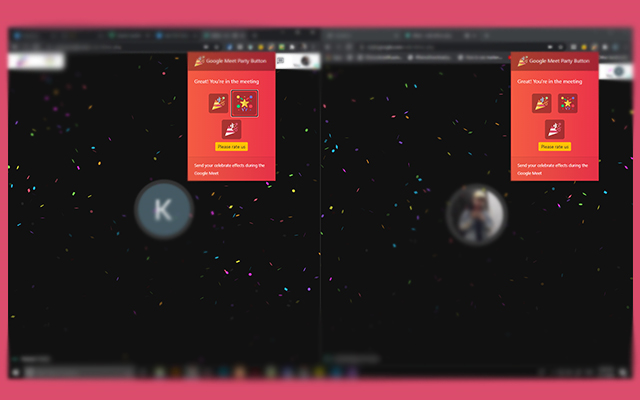
Celebrate big wins during your Google Meet meetings.
Use this extension to have a party effect on the Google Meet screen when you wish to celebrate a major win such
as closing a contract/closing a new client etc.
With remote meetings, it can be hard to keep up team spirits due to social distancing etc.
Instead of having happy hour at the pub to celebrate, use our Party button instead to celebrate major wins.
To begin using the extension, please install our extension.
Go to the Google Meet meeting and begin your call.
Click on the extension icon to activate our extension code. The party button will only appear when you click on the extension icon at the top right corner. The main reason for this => it helps protect user privacy as our code only runs when you press on the Google Meet Party extension icon.
Use the confetti effect by clicking on the extension icon.
Features:
- Visual Effects for Google Meet
Why do companies/people choose Google Meet versus using Zoom?
The benefits of using Google Meet versus Zoom are:
It's free. Google Meet is completely free, so you can use it to host meetings with up to 30 people at no cost.
You don't need an account to use it. Unlike Zoom, anyone with a Google account can join your meeting without having to create a separate account.
The audio quality is excellent. You can choose between two different audio options: "high" or "standard." Both options provide excellent sound quality and are comparable to what you'd get from Zoom or other video conferencing services (although the standard option doesn't offer as many features).
It works on mobile devices and desktops alike — no app needed! You can access all your meetings directly from the web browser, which means that you won't have to download any additional software before joining them (as long as you have a Google account).
Google Meet vs. Microsoft Teams: The basics
Both Google Meet and Microsoft Teams are business chat apps with built-in video conferencing capabilities. They can be used to share documents and collaborate on projects with colleagues at work or school. Both offer free accounts that allow you to host meetings with up to 15 people at once, along with paid accounts that give you access to more features like unlimited meetings and larger meeting sizes.
Google Meet also includes an integrated calendar feature that lets users schedule meetings in advance without leaving the app. You can also use Google Calendar in conjunction with Google Meet if you want to see your existing appointments alongside your scheduled meetings within the same screen.
Microsoft Teams doesn't have its own calendar feature, but it does include integration with Office 365 calendars so you can see them alongside your scheduled meetings within the same screen
Tutorial:
- Install the Extension
-
After installing the extension, click on the icon
 on the toolbar.
Sponsored Link: